Showing posts with label ipod. Show all posts
Friday, September 3, 2010
iOS 4.1 confirmed for September 8th on Apple's UK website
According to Apple's UK website, iOS 4.1 will hit on Wednesday, September 8th. The US website still displays the non-commital "Coming Soon" message, so we'll have to keep our eyes peeled. We're going to go ahead and guess that all those shiny new iPods will come to retail that day too... but don't hold us to that one. Like we said, it's only a guess.
Labels:
apple,
ios,
ios4,
iphone,
iphone 3gs,
ipod,
operating system,
september
Apple iOS is Now the Third Most Popular Platform
Apple's iOS mobile operating is now the third most popular platform on the Internet, according to data from Net Applications.
Computer World relays information from the company that found iOS to be six times larger than Android and account for 1.1% of all hardware on the Internet last month.
For the month of August, Linux fell to a 0.85% share, the third month in a row that the open-source operating system lost ground. Windows and Apple's Mac OS were the No. 1 and No. 2 operating systems on the Web, with 91.3% and 5%, respectively.
"It's something to take note of when a mobile operating system passes something that's been around forever," said Vince Vizzaccaro, a Net Applications vice president, talking about iOS overtaking Linux. "Mobile's growth curve is strong, and mobile is becoming quite a phenomenon on the Internet."
Computer World relays information from the company that found iOS to be six times larger than Android and account for 1.1% of all hardware on the Internet last month.
For the month of August, Linux fell to a 0.85% share, the third month in a row that the open-source operating system lost ground. Windows and Apple's Mac OS were the No. 1 and No. 2 operating systems on the Web, with 91.3% and 5%, respectively.
"It's something to take note of when a mobile operating system passes something that's been around forever," said Vince Vizzaccaro, a Net Applications vice president, talking about iOS overtaking Linux. "Mobile's growth curve is strong, and mobile is becoming quite a phenomenon on the Internet."
How to share internet connection on PC with "iphone" by wifi
I am assuming that you are using windows XP or Vista. I am assuming that your ethernet is already configured properly for accessing internet. We first need to make your PC/laptop capable of talking to the iphone and viceversa. Follow the below steps to setup an adhoc network between the PC and the iphone.
1. Go to control panel -> network connections.
2. Right click on "Wireless network connection" and choose properties
3. Choose "Wireless Networks" tab.
4. Click the "Add" button, in "Preferred networks" section.
5. Give "iphone-net" as SSID (you can choose any other name)
6. Select "Open" for "network authentication"
7. Select "Disabled" for "data encryption"
8. Tick the checkbox saying "This is a computer-to-computer(ad hoc) network..."
9. You need not change anything else in the other two tabs.
10. Save your settings, by pressing OK in all the places. If everything goes fine, in your iphone, you will be able to see "iphone-net" as one of the available wi-fi networks when you turn on the wi-fi in the iphone. Do not connect to it yet. The procedure ahead is very simple if you have DHCP available on your ethernet. i.e if you automatically get an IP when you connect the LAN cable. Most of the ADSL broadband modems have this functionality. They assign an IP to the PC, when the LAN cable is connected. If you are not a geek you mostly would use this feature to get an IP for your PC.
For now, let us assume that you have DHCP available on your ethernet, where you have internet connection. (If you do not have DHCP, you should follow some extra steps that I mentioned at the end of this tutorial). Follow the steps to create a network bridge.
1. You will have at-least have two entries in your network connections.
2. One will be of the ethernet, and another will be of the wireless network.
3. Select the two connections (by doing ctrl+left click).
4. While both the connections are selected, right click and select "bridge connections"
5. It will take a little while to bridge connections.
6. You will get one more entry in network connections with name "Network Bridge"
You are almost ready to go. Do your routine exercise whichever you follow to be able to access the internet on your PC. For e.g starting your ADSL modem, and/or connecting the LAN cable etc. Once you are able to access internet on your PC, do the following on your iphone.
1. Turn on the wifi
2. Select iphone-net that will be shown in the available networks.
3. Click the small blue round arrow on the right
4. It will give more details about the connection.
5. You should see the IP that is in the same range as that of your PC.
6. Open the safari browser, and open some website. It should work.
Enjoy!!
(I am bored now, I will write later on how to access internet if there is no DHCP on the ethernet. For the knowledgeable, its obvious that we need give static IP in both the PC and iphone in the same range. I will explain it later)
One big and irritating problem that I face is that, the network connection keeps dropping very frequently. It gets disconnected every 10 mins or so. The wifi signal indicator does not become grey, but internet access will cease. I do not know a permanent solution to this. If you know, please help me. The workaround is to turn-off the wifi and turn it on again.
See the following tutorial about network bridges for general idea. This network bridge is available only on windows XP and vista. This technique is very simple. I couldn't succeed to share the internet using the ICS(Internet connection sharing) feature. I did not try much. Also, I am not sure if we can create a bridge with a dail-up connection. I do not have first-hand experience but by quick googling it seems that it is possible.
1. Go to control panel -> network connections.
2. Right click on "Wireless network connection" and choose properties
3. Choose "Wireless Networks" tab.
4. Click the "Add" button, in "Preferred networks" section.
5. Give "iphone-net" as SSID (you can choose any other name)
6. Select "Open" for "network authentication"
7. Select "Disabled" for "data encryption"
8. Tick the checkbox saying "This is a computer-to-computer(ad hoc) network..."
9. You need not change anything else in the other two tabs.
10. Save your settings, by pressing OK in all the places. If everything goes fine, in your iphone, you will be able to see "iphone-net" as one of the available wi-fi networks when you turn on the wi-fi in the iphone. Do not connect to it yet. The procedure ahead is very simple if you have DHCP available on your ethernet. i.e if you automatically get an IP when you connect the LAN cable. Most of the ADSL broadband modems have this functionality. They assign an IP to the PC, when the LAN cable is connected. If you are not a geek you mostly would use this feature to get an IP for your PC.
For now, let us assume that you have DHCP available on your ethernet, where you have internet connection. (If you do not have DHCP, you should follow some extra steps that I mentioned at the end of this tutorial). Follow the steps to create a network bridge.
1. You will have at-least have two entries in your network connections.
2. One will be of the ethernet, and another will be of the wireless network.
3. Select the two connections (by doing ctrl+left click).
4. While both the connections are selected, right click and select "bridge connections"
5. It will take a little while to bridge connections.
6. You will get one more entry in network connections with name "Network Bridge"
You are almost ready to go. Do your routine exercise whichever you follow to be able to access the internet on your PC. For e.g starting your ADSL modem, and/or connecting the LAN cable etc. Once you are able to access internet on your PC, do the following on your iphone.
1. Turn on the wifi
2. Select iphone-net that will be shown in the available networks.
3. Click the small blue round arrow on the right
4. It will give more details about the connection.
5. You should see the IP that is in the same range as that of your PC.
6. Open the safari browser, and open some website. It should work.
Enjoy!!
(I am bored now, I will write later on how to access internet if there is no DHCP on the ethernet. For the knowledgeable, its obvious that we need give static IP in both the PC and iphone in the same range. I will explain it later)
One big and irritating problem that I face is that, the network connection keeps dropping very frequently. It gets disconnected every 10 mins or so. The wifi signal indicator does not become grey, but internet access will cease. I do not know a permanent solution to this. If you know, please help me. The workaround is to turn-off the wifi and turn it on again.
See the following tutorial about network bridges for general idea. This network bridge is available only on windows XP and vista. This technique is very simple. I couldn't succeed to share the internet using the ICS(Internet connection sharing) feature. I did not try much. Also, I am not sure if we can create a bridge with a dail-up connection. I do not have first-hand experience but by quick googling it seems that it is possible.
Recommended Cydia Repo
hackulo : http://cydia.hackulo.us
xsellize : http://cydia.xsellize.com/
bigboss : http://apt.bigboss.us.com/repofiles/cydia/
boolean : http://booleanmagic.com/repo/
iphoneil : http://cydia.iphoneil.net/
http://david.ashman.com/apt/
beyouriphone : http://repo.beyouriphone.com/
ispazio : http://ispaziorepository.com/
modmyi : http://apt.modmyi.com/
sinful : http://sinfuliphonerepo.com/
touch mania : http://cydia.touch-mania.com/
zodttd & macciti : http://cydia.zodttd.com/repo/cydia/
xsellize : http://cydia.xsellize.com/
bigboss : http://apt.bigboss.us.com/repofiles/cydia/
boolean : http://booleanmagic.com/repo/
iphoneil : http://cydia.iphoneil.net/
http://david.ashman.com/apt/
beyouriphone : http://repo.beyouriphone.com/
ispazio : http://ispaziorepository.com/
modmyi : http://apt.modmyi.com/
sinful : http://sinfuliphonerepo.com/
touch mania : http://cydia.touch-mania.com/
zodttd & macciti : http://cydia.zodttd.com/repo/cydia/
How to Jailbreak Your iPhone Using JailbreakMe [4.0.0, 4.0.1]
These are instructions on how to jailbreak any iPhone (including the iPhone 4) on iOS 4 using JailbreakMe by Comex. Before beginning make sure your device is activation on iOS 4.0.0 or 4.0.1.
Step One
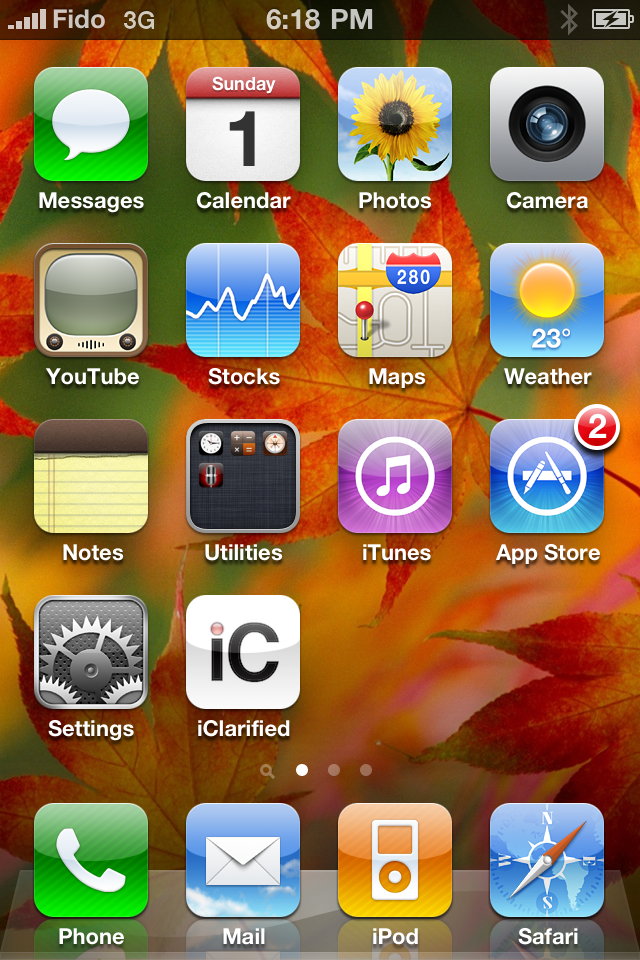
Press to launch Safari from your Springboard
.
Step Two
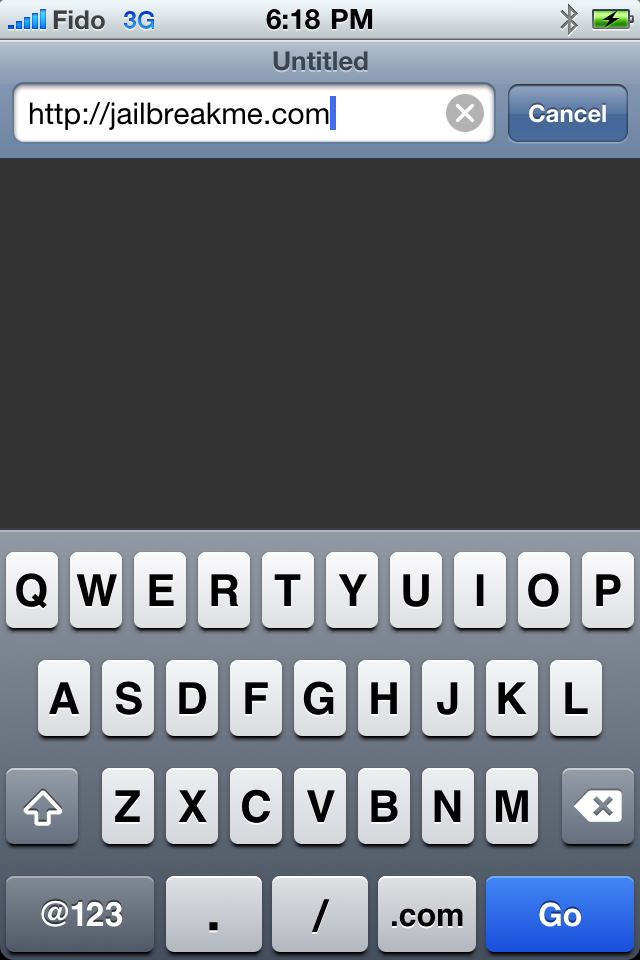
Press to select the address bar and input http://jailbreakme.com then press the Done button.


Step Three
To begin the jailbreak simply move the slider to right.

Step Four
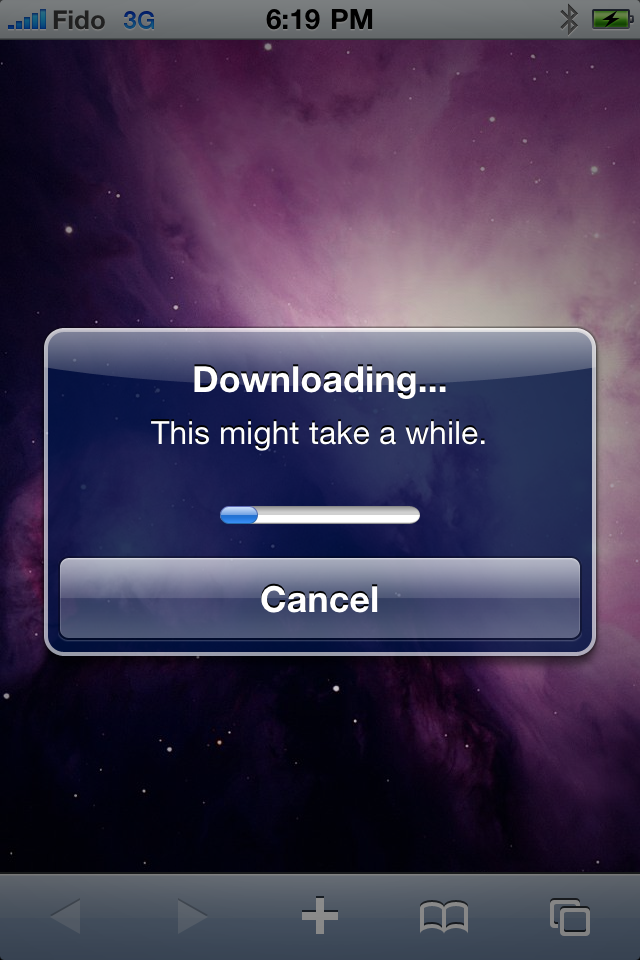
You will be displayed a status bar as the download progresses.

Step Five
Once the download is complete the jailbreak process will begin


Step Six
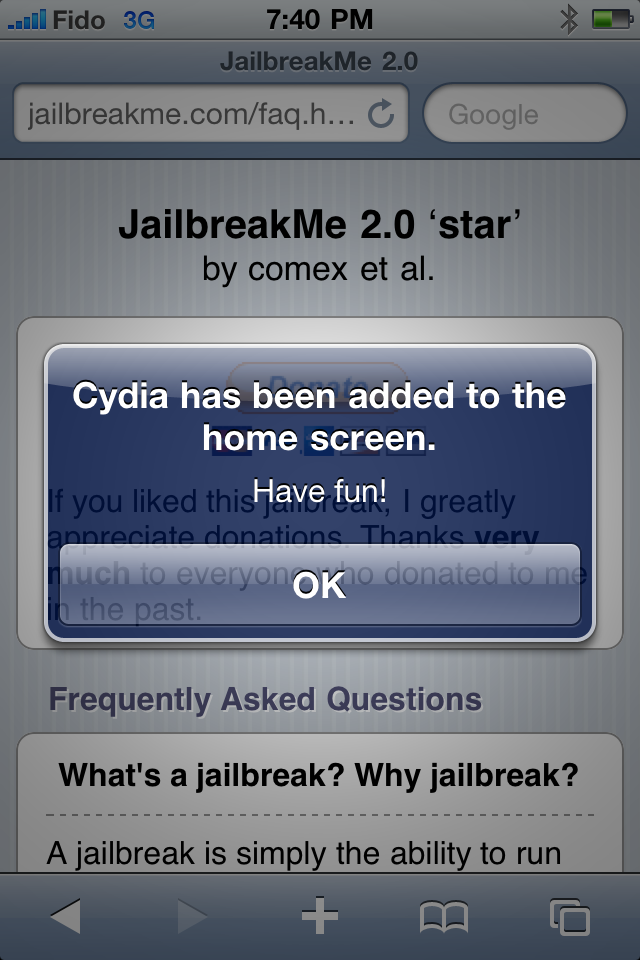
Once you are notified that the jailbreak process is complete press the OK button.

Press the Home button to reveal Cydia on your desktop!

Congratulations you are done! You may now continue by installing UltraSn0w to unlock you device. iPhone 4 users still need to wait a bit for an UltraSn0w update which will arrive shortly.
A big thanks goes to Comex and the iPhone Dev-Team for their efforts and successes.
Press to launch Safari from your Springboard
.

Step Two
Press to select the address bar and input http://jailbreakme.com then press the Done button.


Step Three
To begin the jailbreak simply move the slider to right.

Step Four
You will be displayed a status bar as the download progresses.

Step Five
Once the download is complete the jailbreak process will begin


Step Six
Once you are notified that the jailbreak process is complete press the OK button.


Press the Home button to reveal Cydia on your desktop!

Congratulations you are done! You may now continue by installing UltraSn0w to unlock you device. iPhone 4 users still need to wait a bit for an UltraSn0w update which will arrive shortly.
A big thanks goes to Comex and the iPhone Dev-Team for their efforts and successes.
Thursday, September 2, 2010
iOS 4.1 (Final) For iPhone, iPod Touch Coming Next Week to Fix Numerous Issues
Apple has announced that iOS 4.1 final version will be out next week along with the iPod Touch 4Gavailability. iOS 4.1 will come with numerous bug fixes including proximity sensor and Bluetooth fix for iPhone 4 and performance improvements for iPhone 3G.

iOS 4.1 firmware will also feature:
- High Dynamic Range (HDR) photos
- Game Center
- HD video upload over Wi-Fi
- TV show rentals
Apple has just pushed the iOS 4.1 GM (Gold Master) build to developers and final version of iOS 4.1 firmware will be released to masses next week.
stay tune for future information.
Subscribe to:
Posts (Atom)